AI Image Extender
Widen any photo by filling in what lies past the frame.
Upload an image and pick a new aspect ratio, such as 16:9 for a banner or 9:16 for a story. Aymo AI expands the frame and fills the new space with scenery, background, and light that match the original. Add a note on what should appear, and compare results from different image models.
Upload Your Image
Choose a file or drag & drop it here.
JPG, PNG, or WEBP, up to 20 MB.
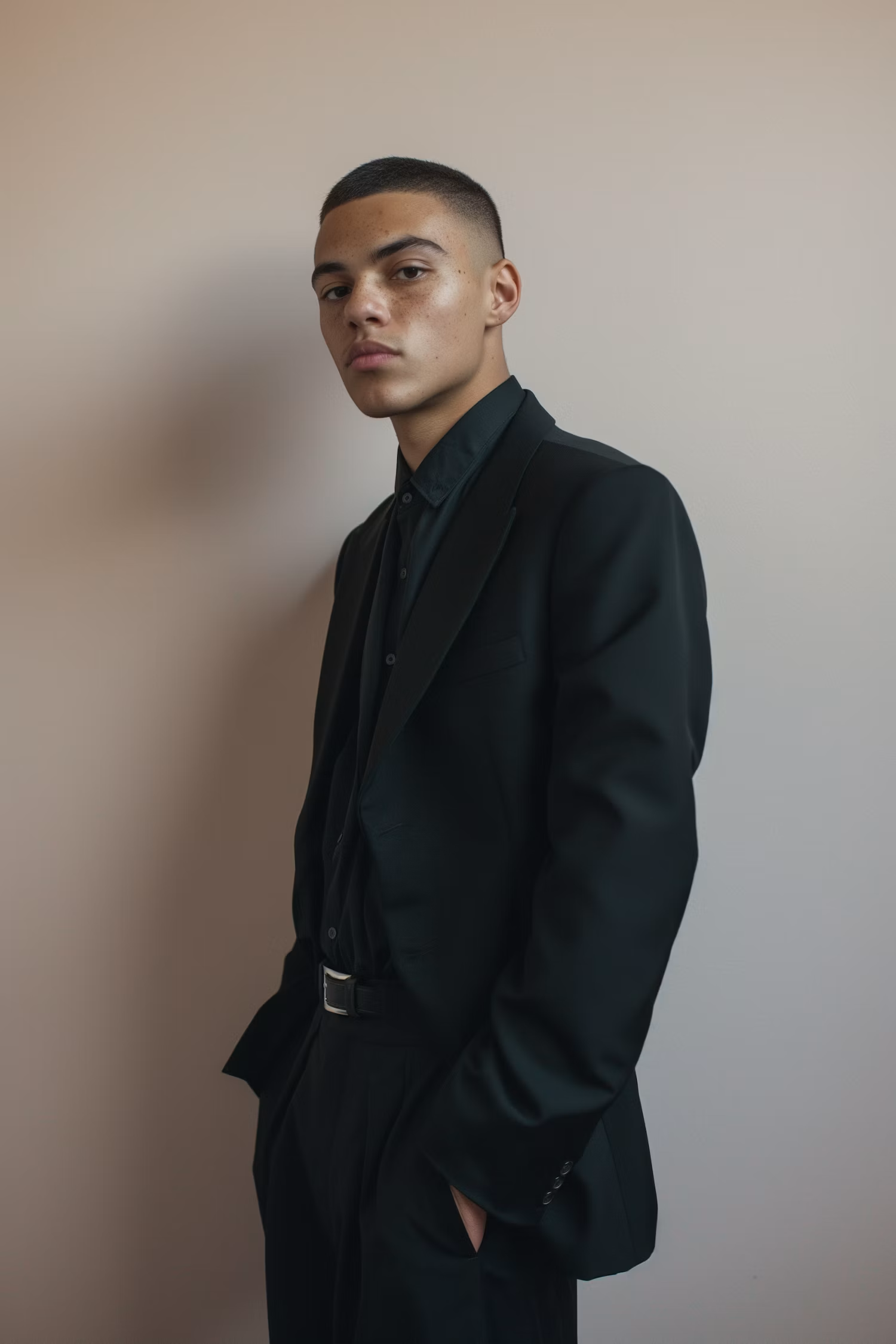
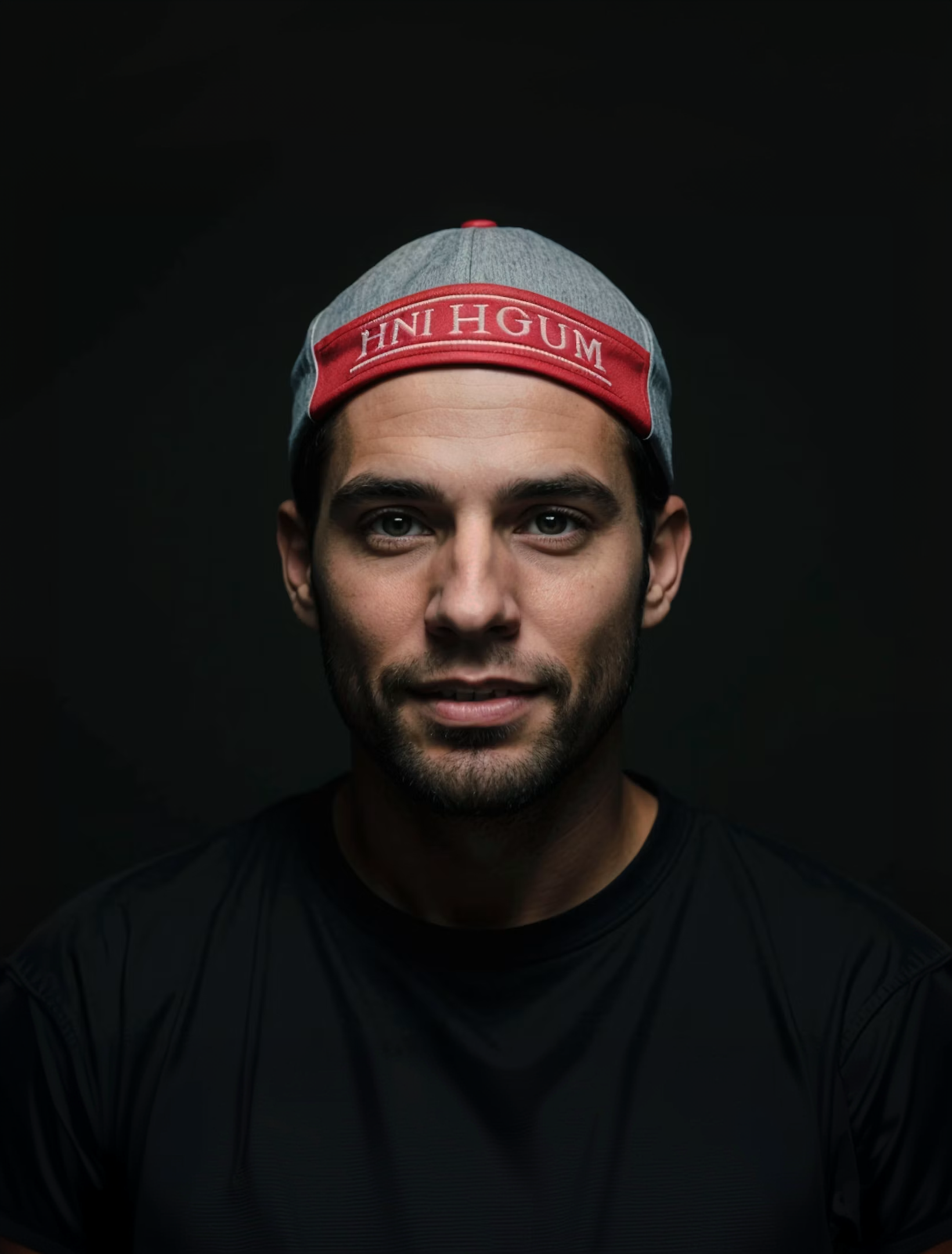
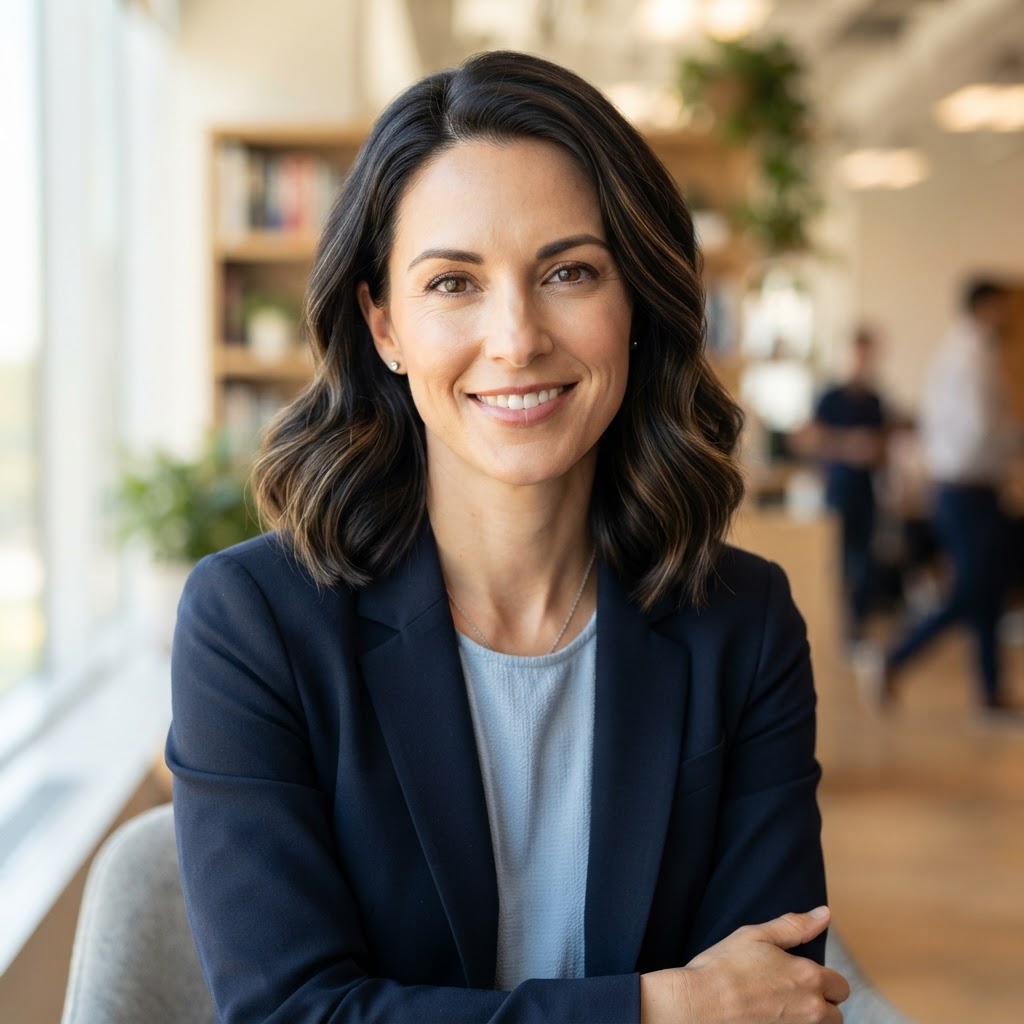
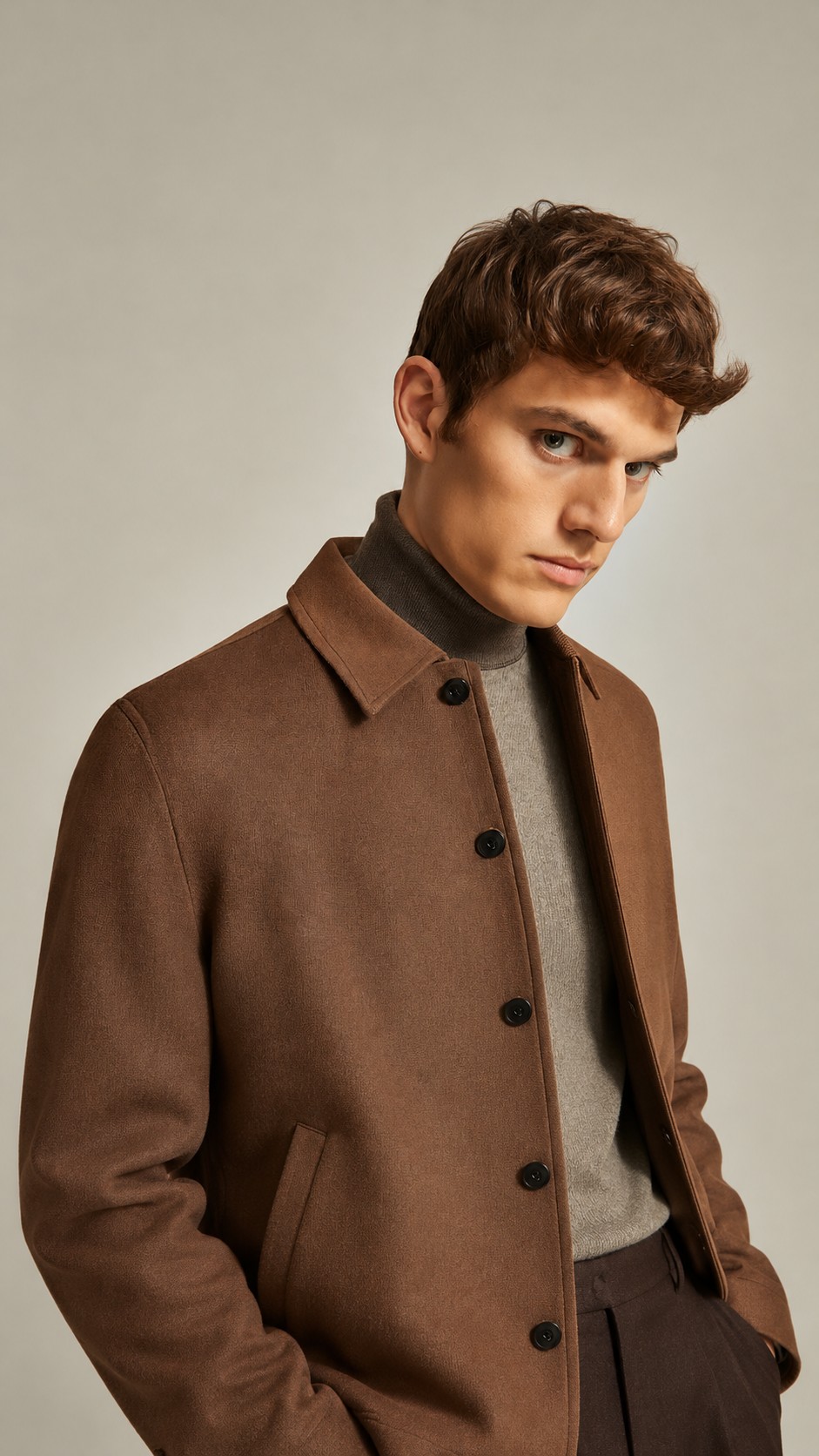
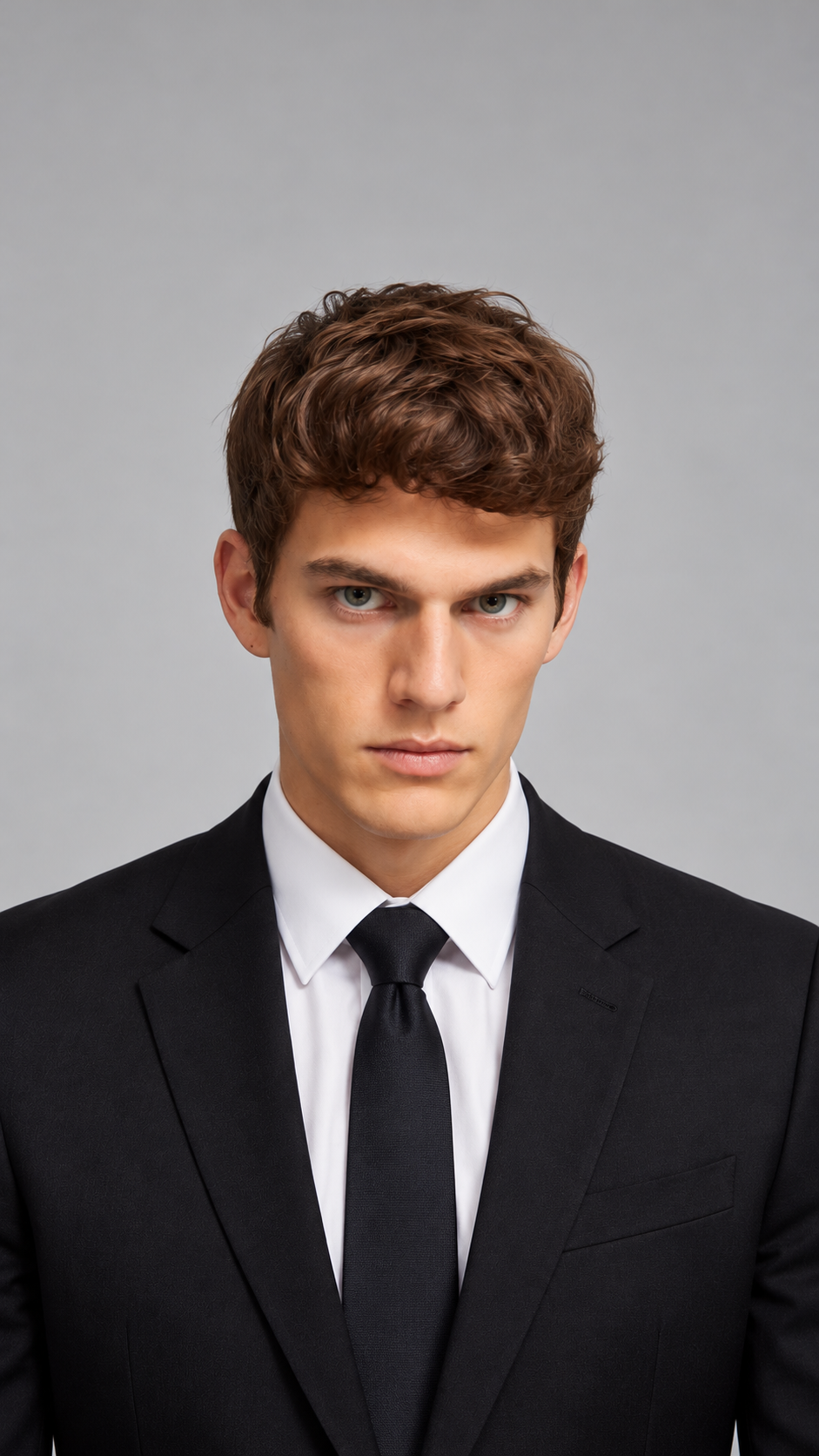
Multiple Image Models
Extend the same image with several models and keep the most natural fill.
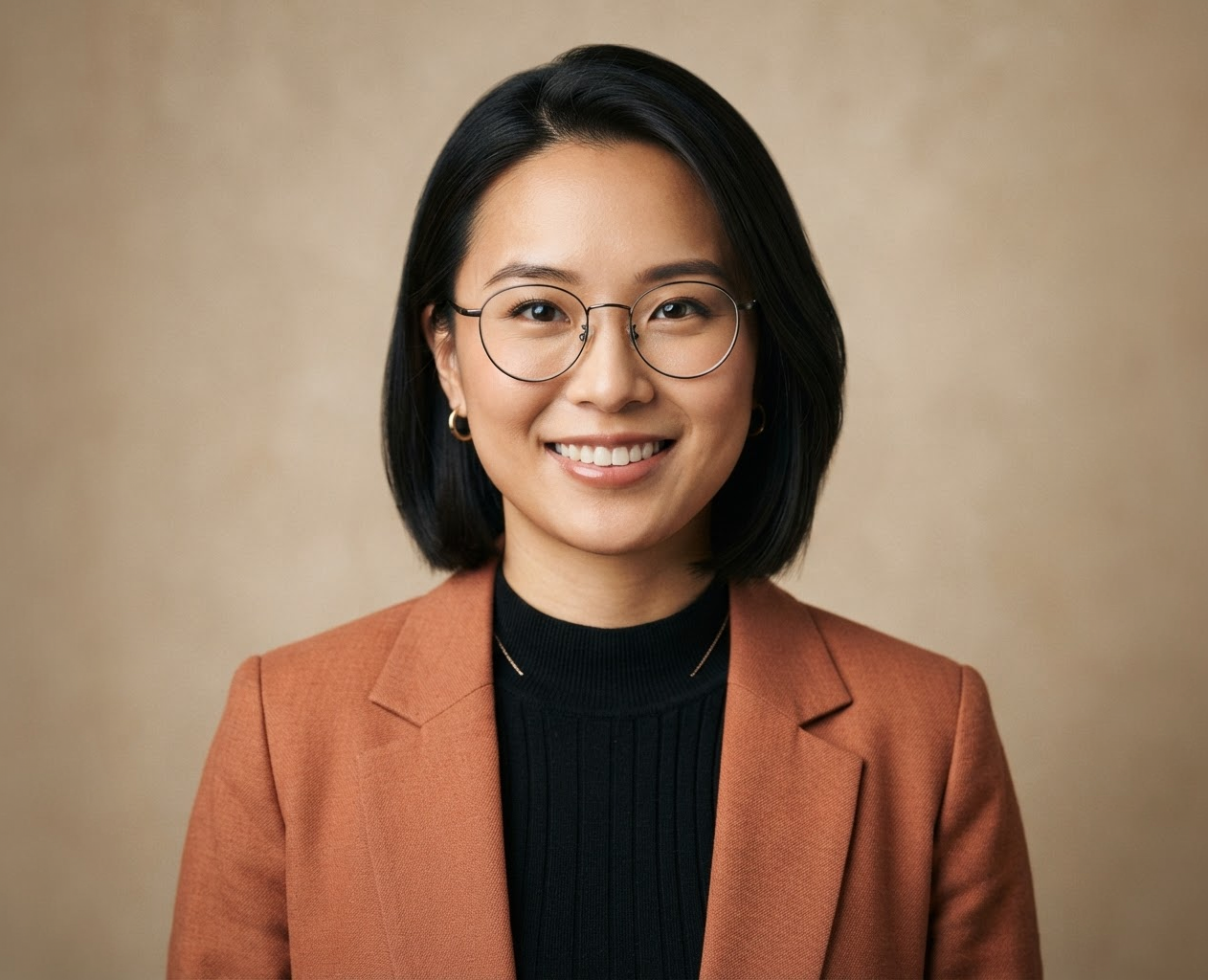
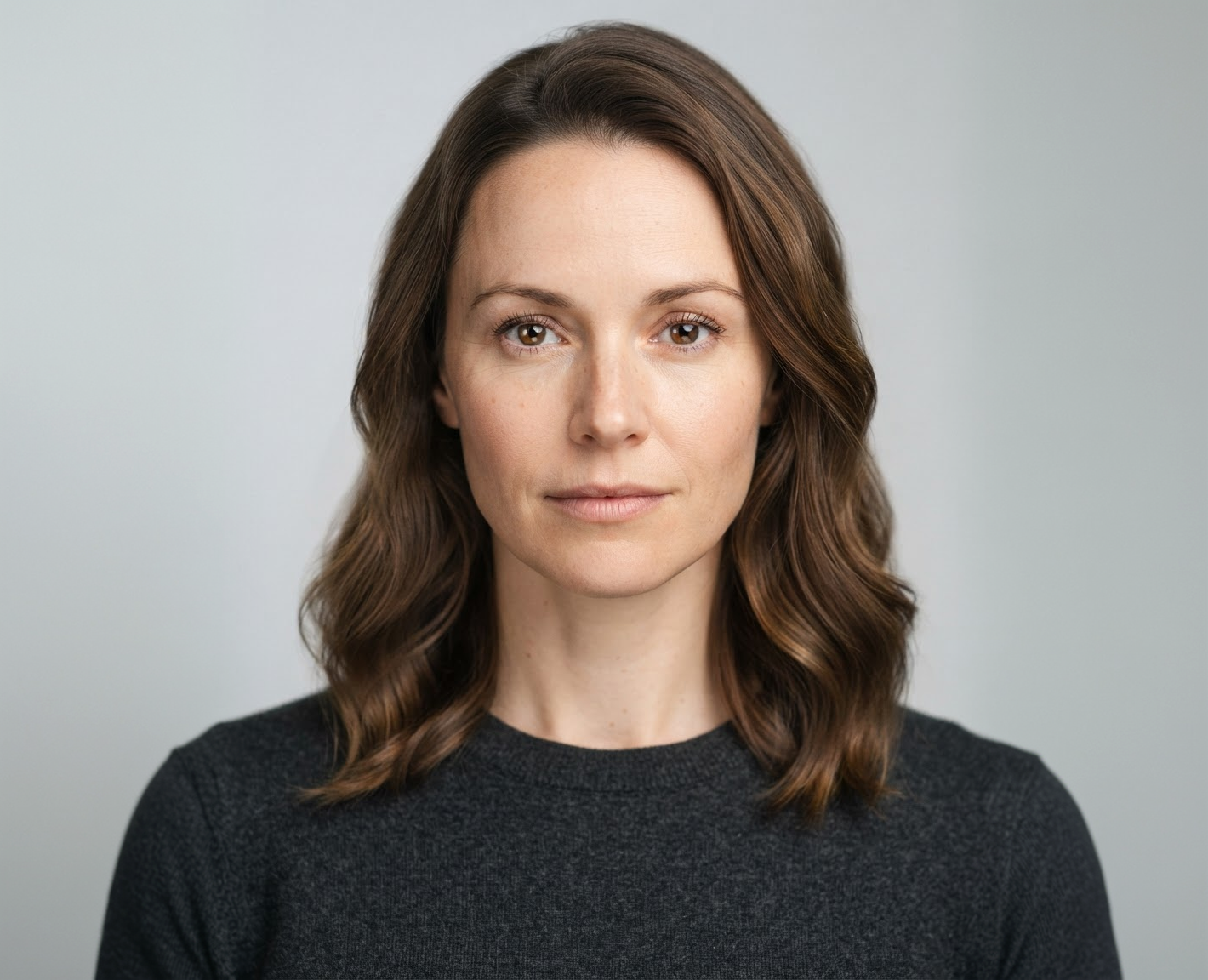
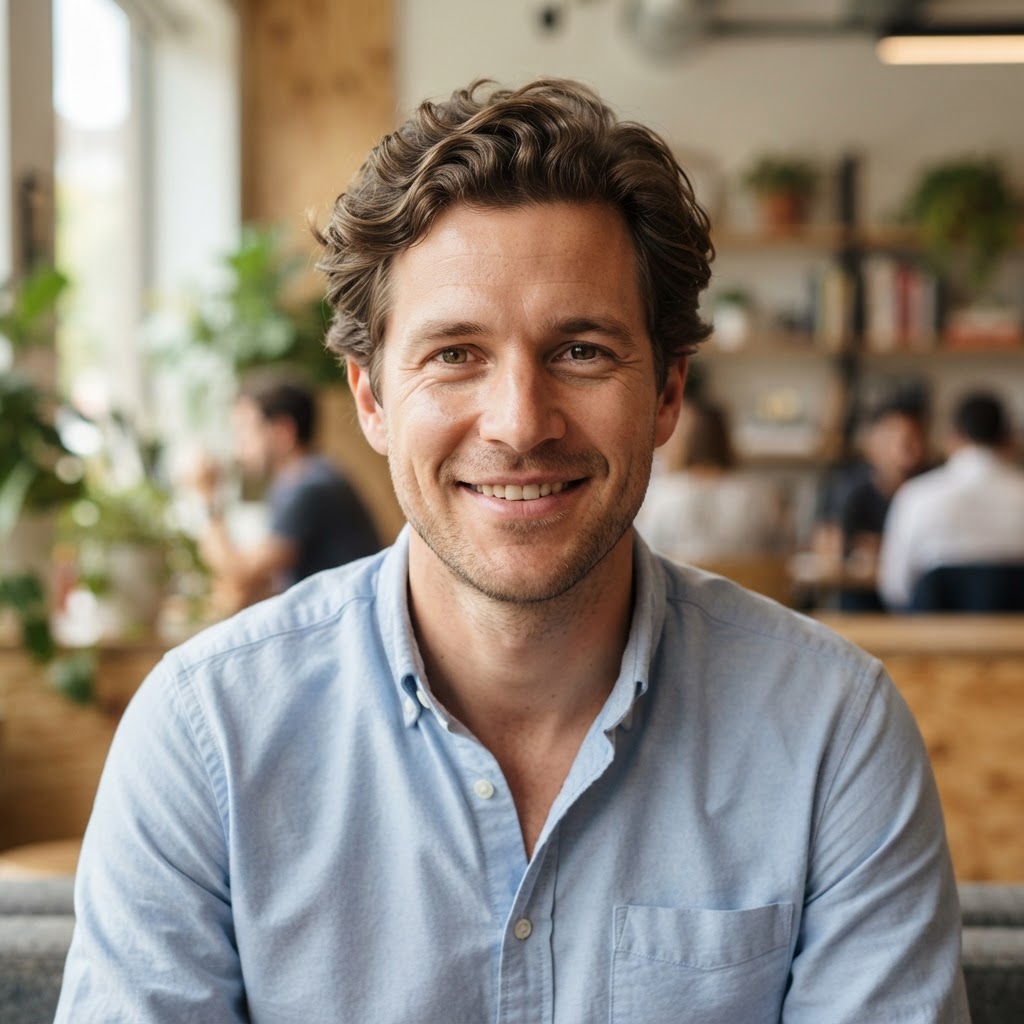
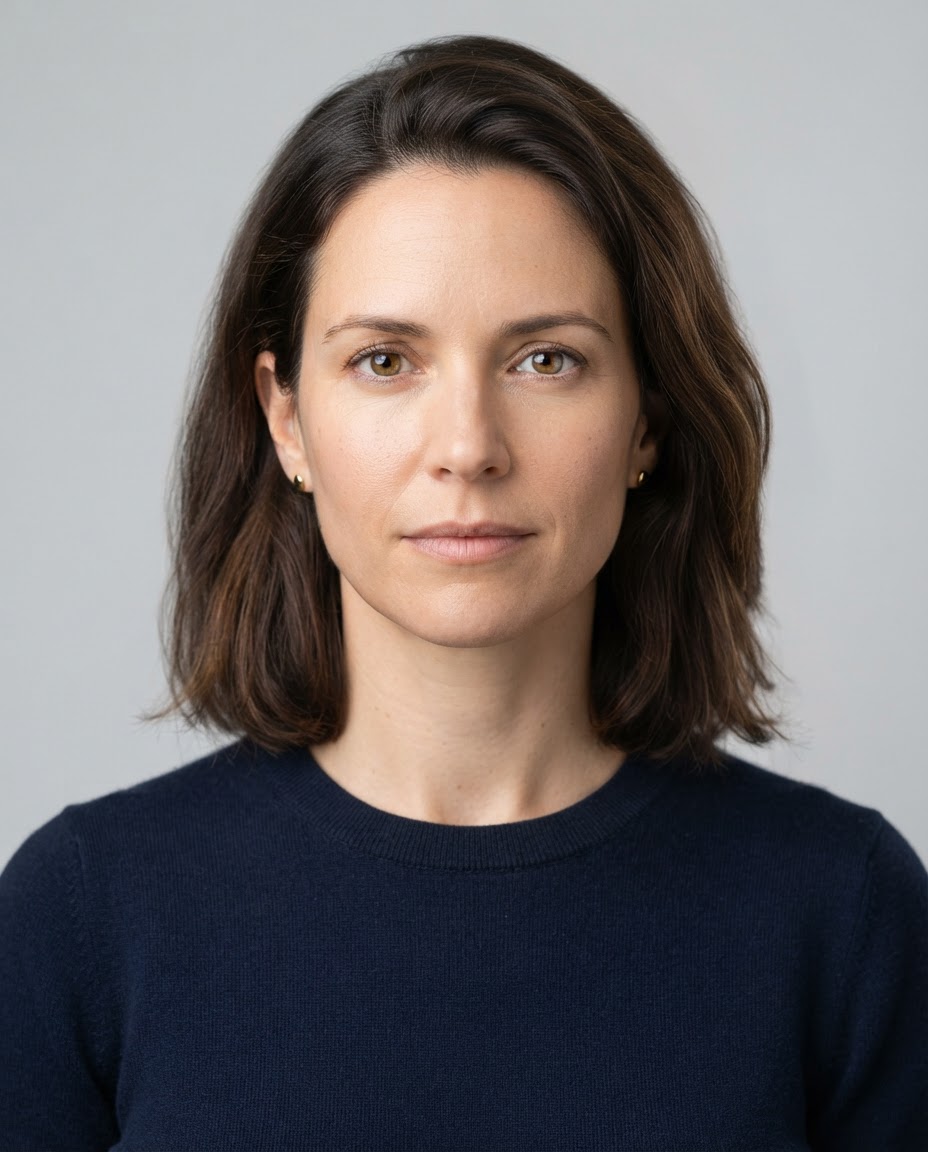
Five Aspect Ratios
Expand to 1:1, 4:3, 3:4, 16:9, or 9:16 for posts, banners, stories, and slides.
Export Sizes
Seamless Fill
New areas match the lighting, perspective, and texture of the original.
Guide What Appears
Describe the extended area, such as "more beach on the left", and the model follows it.
Up to 4K Output
Export large files for print and wide screens on paid plans.
How it works
How to Extend an Image with AI
Create professional results in just a few simple steps.
Step 1
Upload Your Image
Add the photo you want to widen.
Choose a file or drag & drop it here.
JPG, PNG, or WEBP, up to 20 MB.
Step 2
Pick the New Size
Choose the aspect ratio, add an optional note, and click Extend Image.
Step 3
Compare and Download
Check the edges and save the best version.
Features
Built for Every Format
Social Media Managers
Turn one photo into a square post, a story, and a banner.
YouTubers
Expand shots into 16:9 thumbnails and channel art.
Designers
Add room around a subject for headlines and layouts.
Ecommerce Teams
Fit product photos to banner and marketplace sizes.
Photographers
Recover space lost to a tight crop.
Presenters
Make portrait photos fill widescreen slides.
FAQ
Frequently Asked Questions
Answers on cost, aspect ratios, quality, models, and privacy for the AI Image Extender.
Yes. You can extend images on the free plan. Free has usage limits and a lower maximum resolution, and paid plans raise both.
1:1, 4:3, 3:4, 16:9, and 9:16.
Yes. The model generates what could lie past the original edges, so a cropped photo looks wider again.
Yes. Describe it, such as "continue the bookshelf on the right", and the model follows it.
It should not. Only the new area is generated, but compare the result with the original in case a model shifts small details.
It is the same capability as a standalone tool. Upload any image here without generating one first.
Yes. Your images stay in your account and are not used to train models. You control who can see anything you share.
Ready to Explore?
Work Smarter With Multi-Model AI
Expand, edit, and generate images using GPT Image, Nano Banana, FLUX, and Seedream in one secure workspace.