AI Family Photo Generator
Everyone in one photo, even if they were never in the same room.
Upload photos of each family member and Aymo AI combines them into one portrait in the setting you choose, from a studio backdrop to a holiday living room. Add a relative who missed the picture, then check each face before you print or share.
Choose a file or drag & drop it here.
JPG, PNG, or WEBP, up to 20 MB.
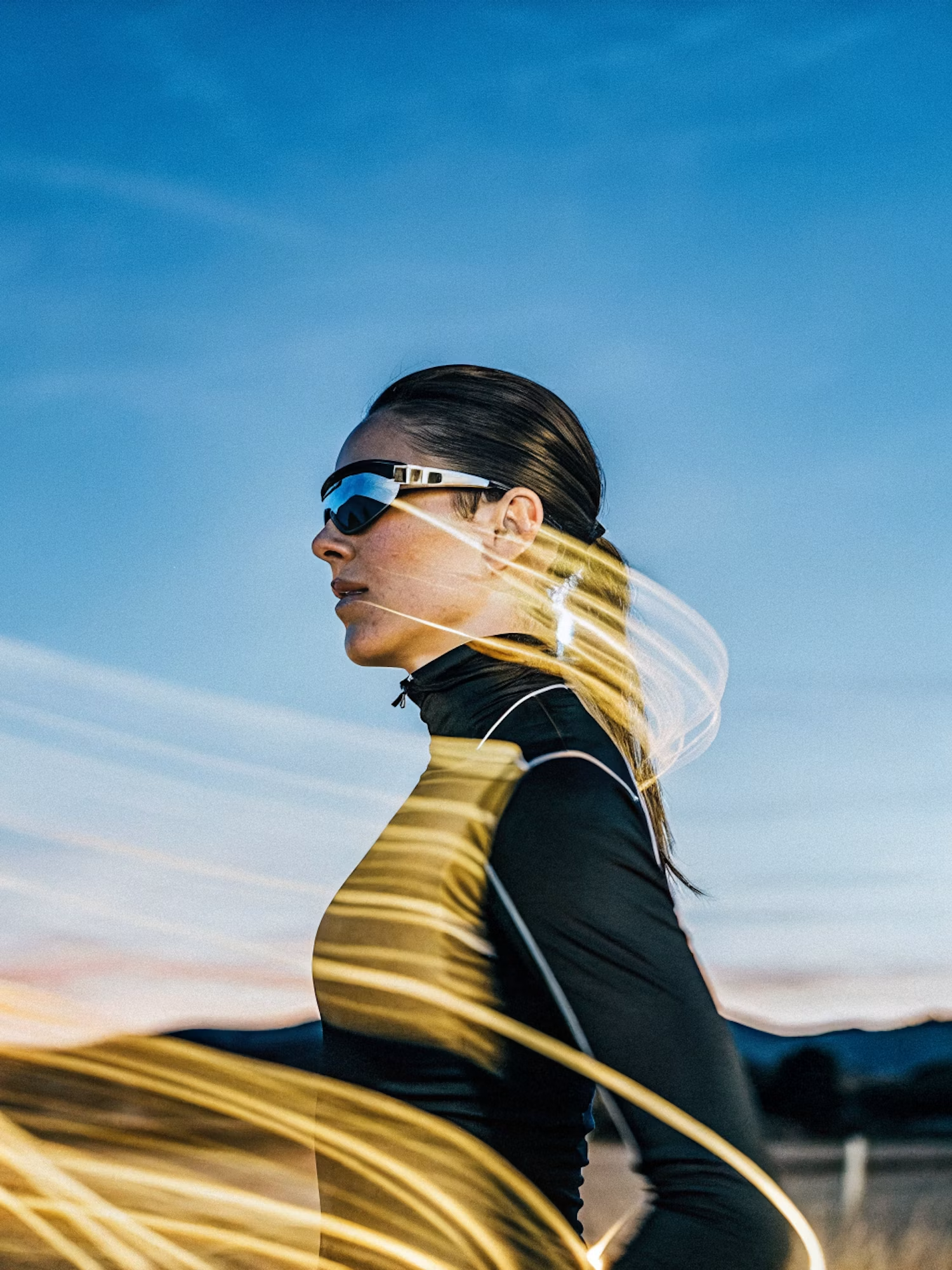
Make the lighting brighter and more balanced while keeping the subject, face, skin tone, clothing, pose, composition, camera angle, background, colors, and image details unchanged. Increase
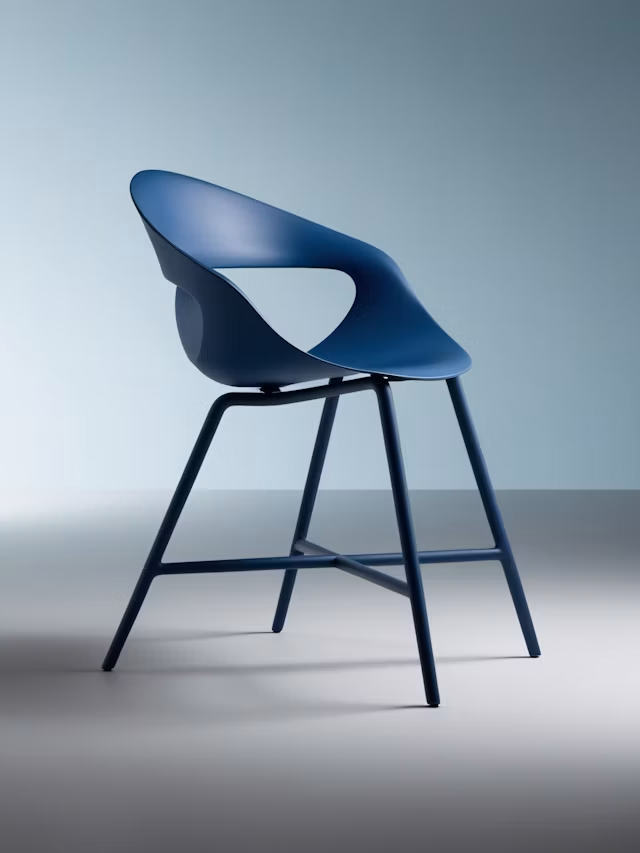
Upscale this image to a higher resolution and improve sharpness while preserving all original details and textures.
Combine Separate Photos
Bring people from different photos into one portrait.
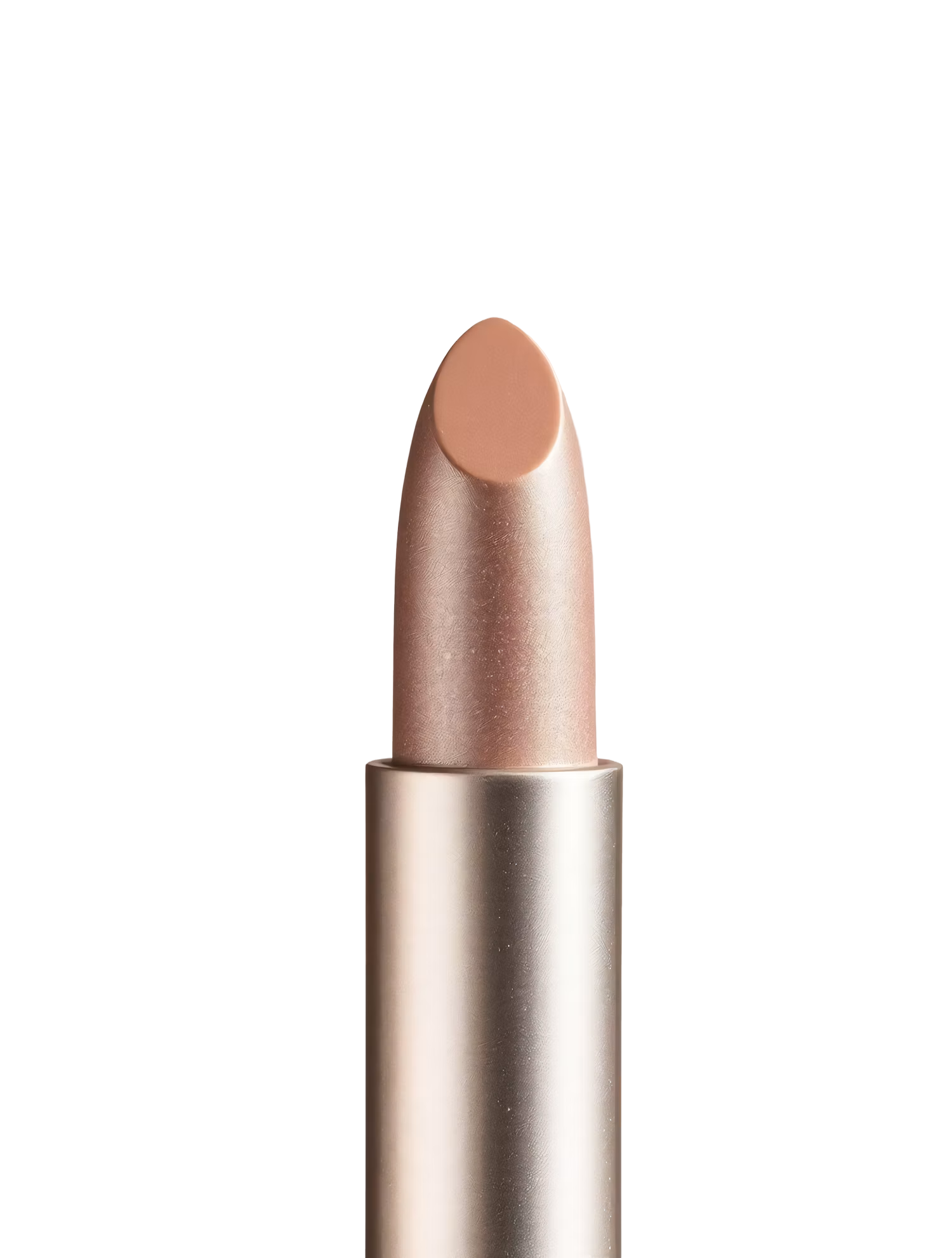

Replace the background with high end social media post while keeping the main subject, pose, lighting, and details unchanged.
Add Someone Who Missed It
Place a missing relative into an existing group photo.
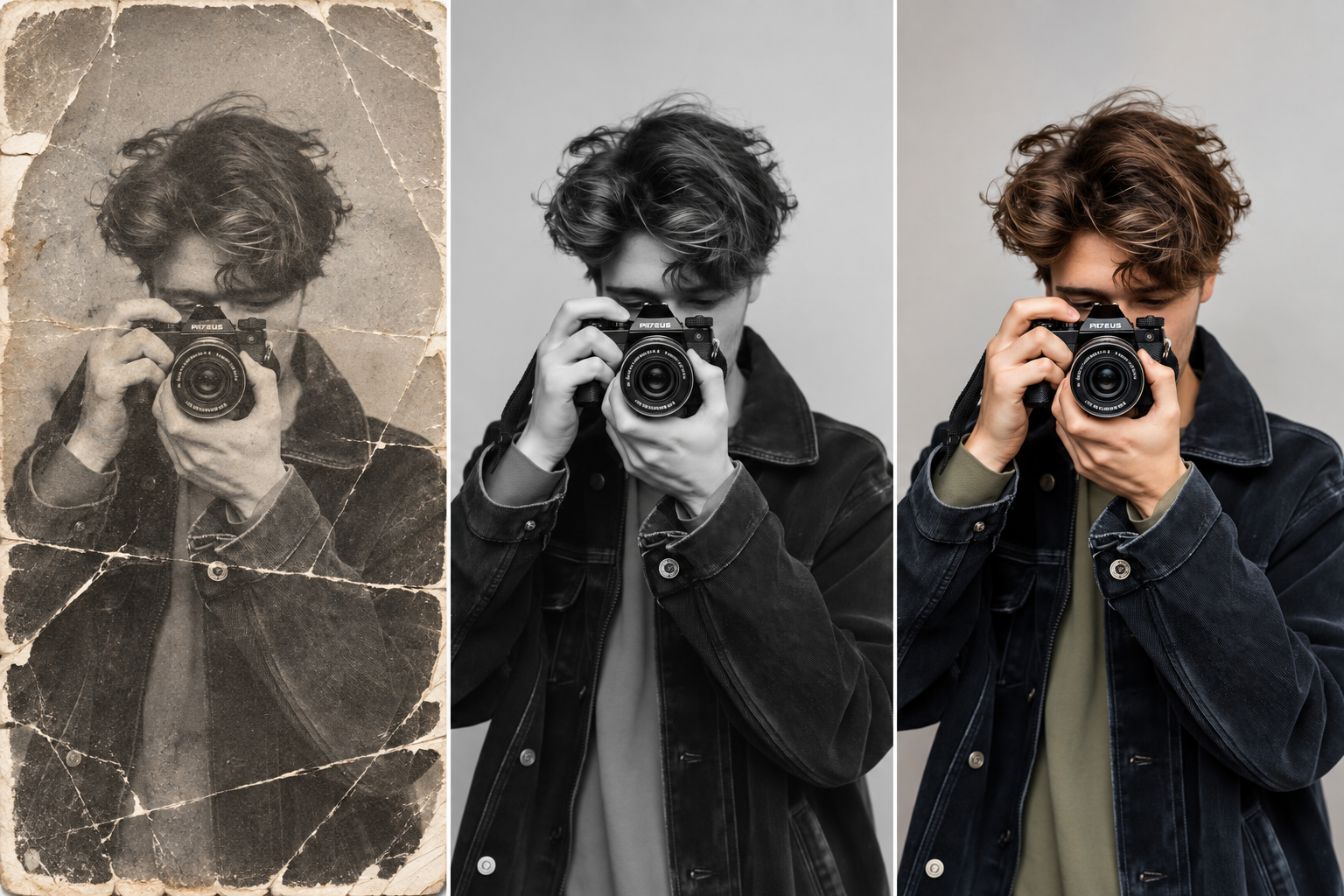
Restore this old photo by removing scratches, noise, blur, and fading while preserving the original details and natural appearance.
Choose the Setting
Studio, garden, home, beach, or a holiday scene.
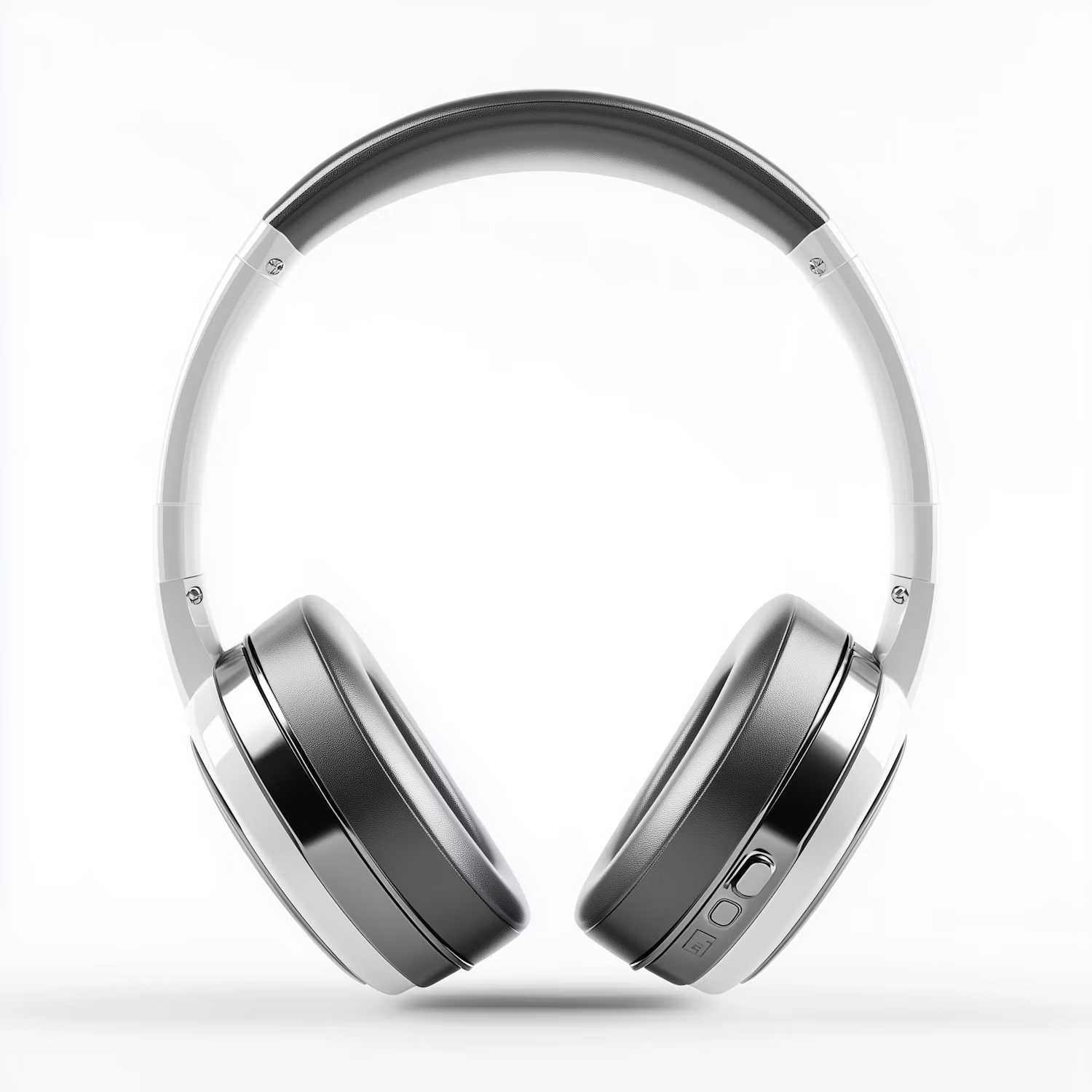

Change the color of Headphone Gray to blue while preserving its original texture, shape, lighting, and details.
Pick a Style
Realistic photo, painted portrait, or cartoon.
How it works
How to Make a Family Photo From Different Photos
Create professional results in just a few simple steps.
Step 1
Upload Family Photos
Add a clear photo of each person, or a group photo plus the person to add.
Choose a file or drag & drop it here.
JPG, PNG, or WEBP, up to 20 MB.
Step 2
Describe the Portrait
Say the setting, style, and who stands where, then click Create Family Photo.
Step 3
Check and Download
Check every face, pick the best version, and save it.
Who is it for?
Who Uses the AI Family Photo Generator
Long-Distance Families
Make a portrait with relatives in other countries.
Holiday Card Makers
Create a family Christmas photo without a shoot.
Grandparents
Get every grandchild in one picture.
Pet Owners
Add the dog or cat to the family portrait.
Gift Givers
Make a framed portrait as a present.
Families Remembering Someone
Create a gentle portrait with a loved one from older photos.
FAQ
Frequently Asked Questions
Answers on cost, separate photos, adding people, likeness, and privacy for the AI Family Photo Generator.
You can try it on the free plan. Free has usage limits, a lower maximum resolution, and a lower limit on how many photos you can upload at once. Paid plans raise all three.
Yes. Upload a clear photo of each person and describe the setting. Similar lighting and angles across the photos give the most natural result.
Upload the group photo and a photo of the person to add, then say where they should stand, such as "next to the woman in the red dress".
Usually, but faces can change slightly. Compare a few models and check each face before printing or sharing.
Yes. Upload a photo of your pet and say where it should sit or stand.
Yes. Clear, front-facing photos work best. For faded or black and white photos, try the AI Photo Colorizer first.
Yes. Your photos stay in your account and are not used to train models. You control who can see anything you share.
Ready to Explore?
Work Smarter With Multi-Model AI
Try new looks, edit photos, and create images with GPT Image, Nano Banana, FLUX, and Seedream in one secure workspace.