AI Smile Generator
Turn a serious face into a natural smile.
Upload a photo and tell Aymo AI how much to smile, from a soft closed-mouth smile to a big grin with teeth. In a group photo, name the person to change and leave everyone else as they are. Compare results from several image models and keep the most natural one.
Choose a file or drag & drop it here.
JPG, PNG, or WEBP, up to 20 MB.
Make the lighting brighter and more balanced while keeping the subject, face, skin tone, clothing, pose, composition, camera angle, background, colors, and image details unchanged. Increase
Upscale this image to a higher resolution and improve sharpness while preserving all original details and textures.
Choose the Smile
Subtle, natural, or big, with or without teeth.
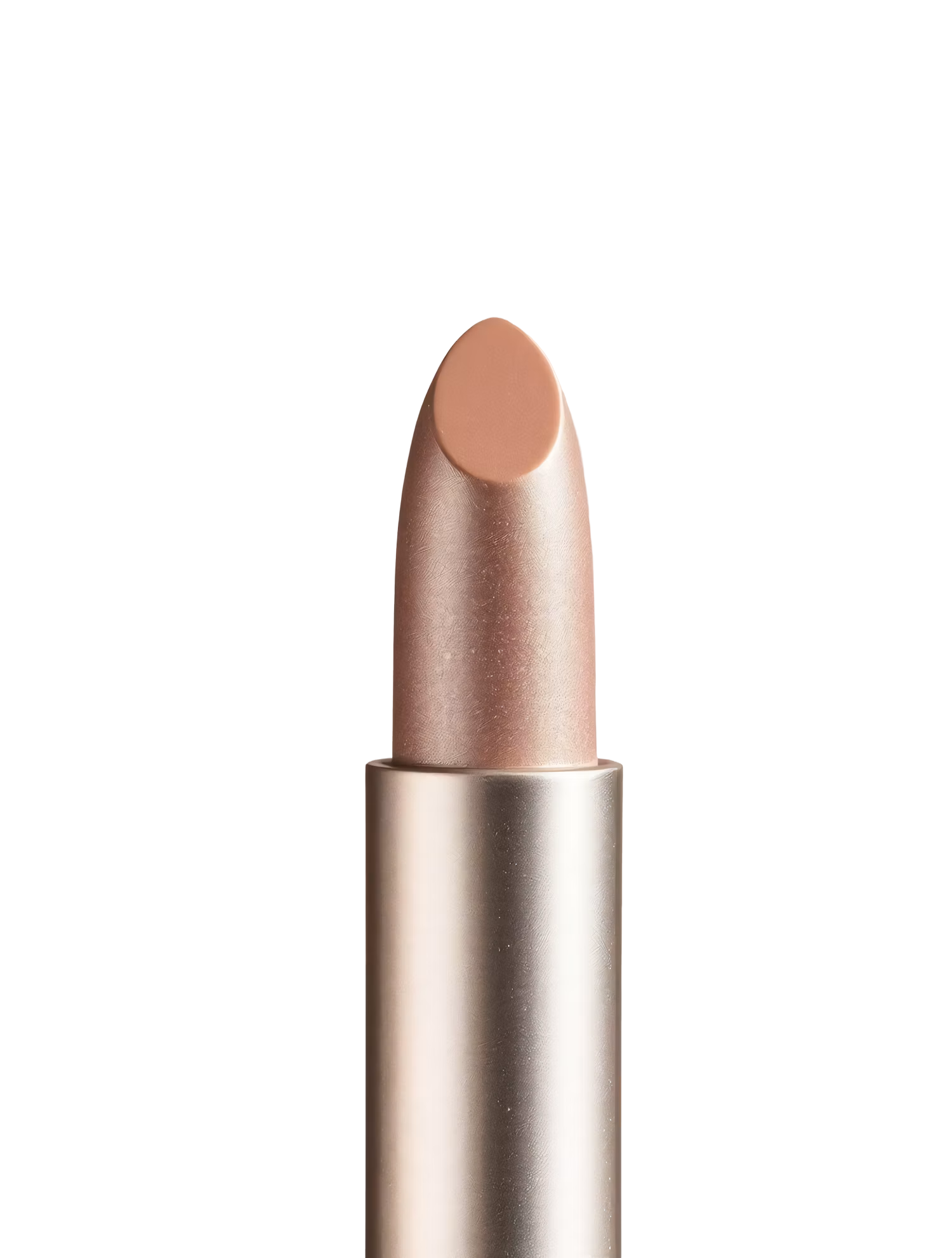
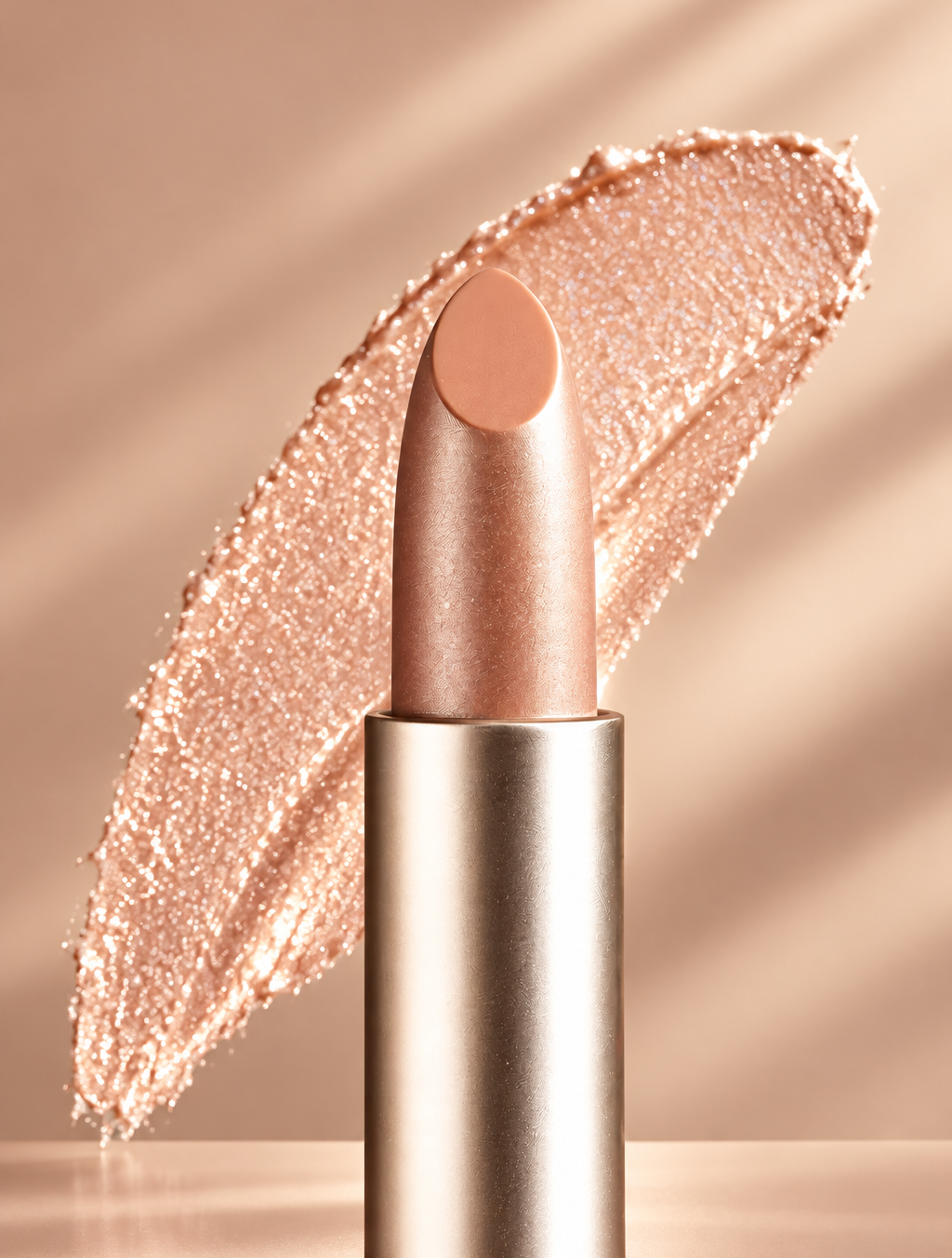
Replace the background with high end social media post while keeping the main subject, pose, lighting, and details unchanged.
Fix One Face in a Group
Change one person's expression and keep the rest of the photo.
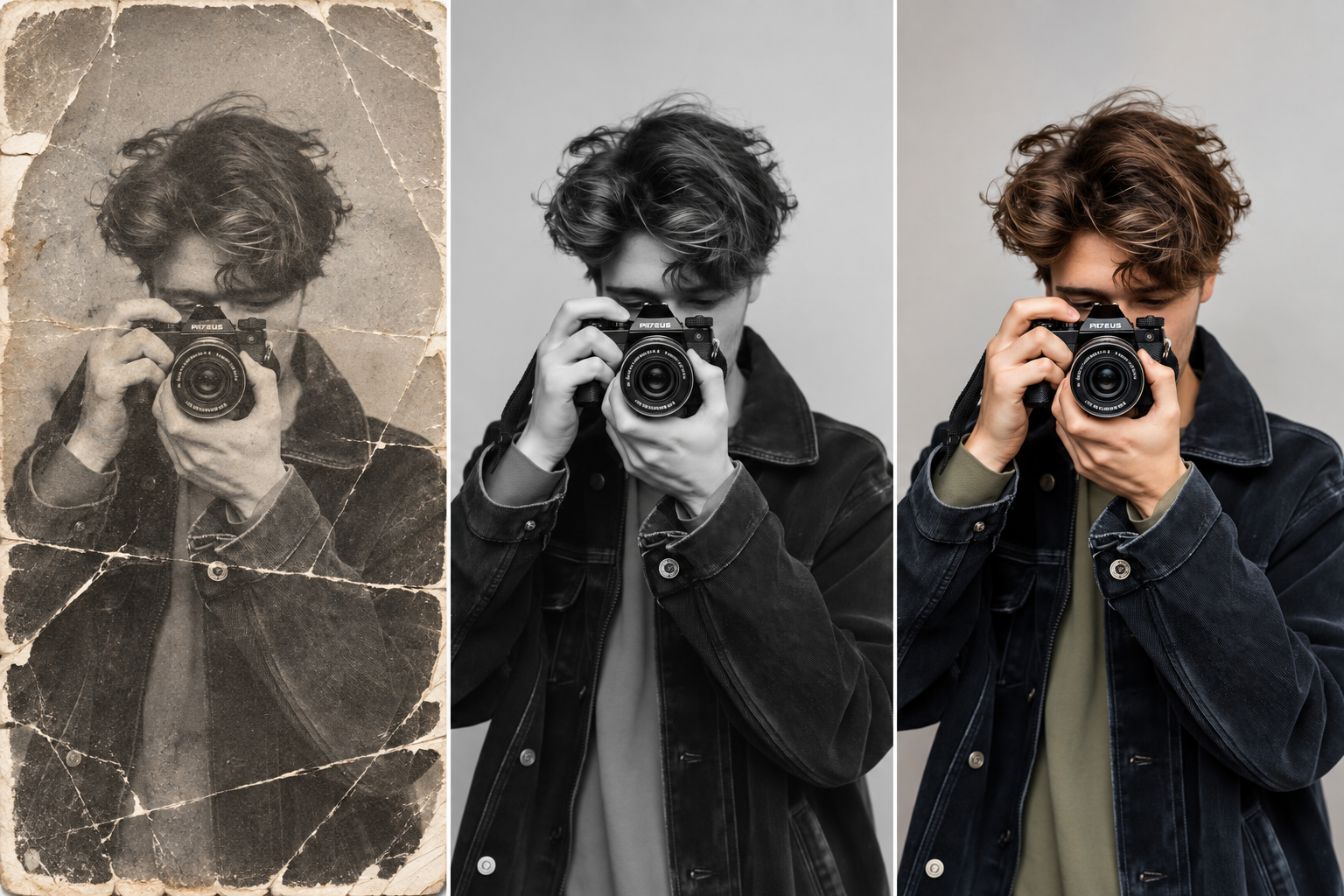
Restore this old photo by removing scratches, noise, blur, and fading while preserving the original details and natural appearance.
Smiles That Reach the Eyes
Cheeks and eyes change too, so the smile looks genuine.
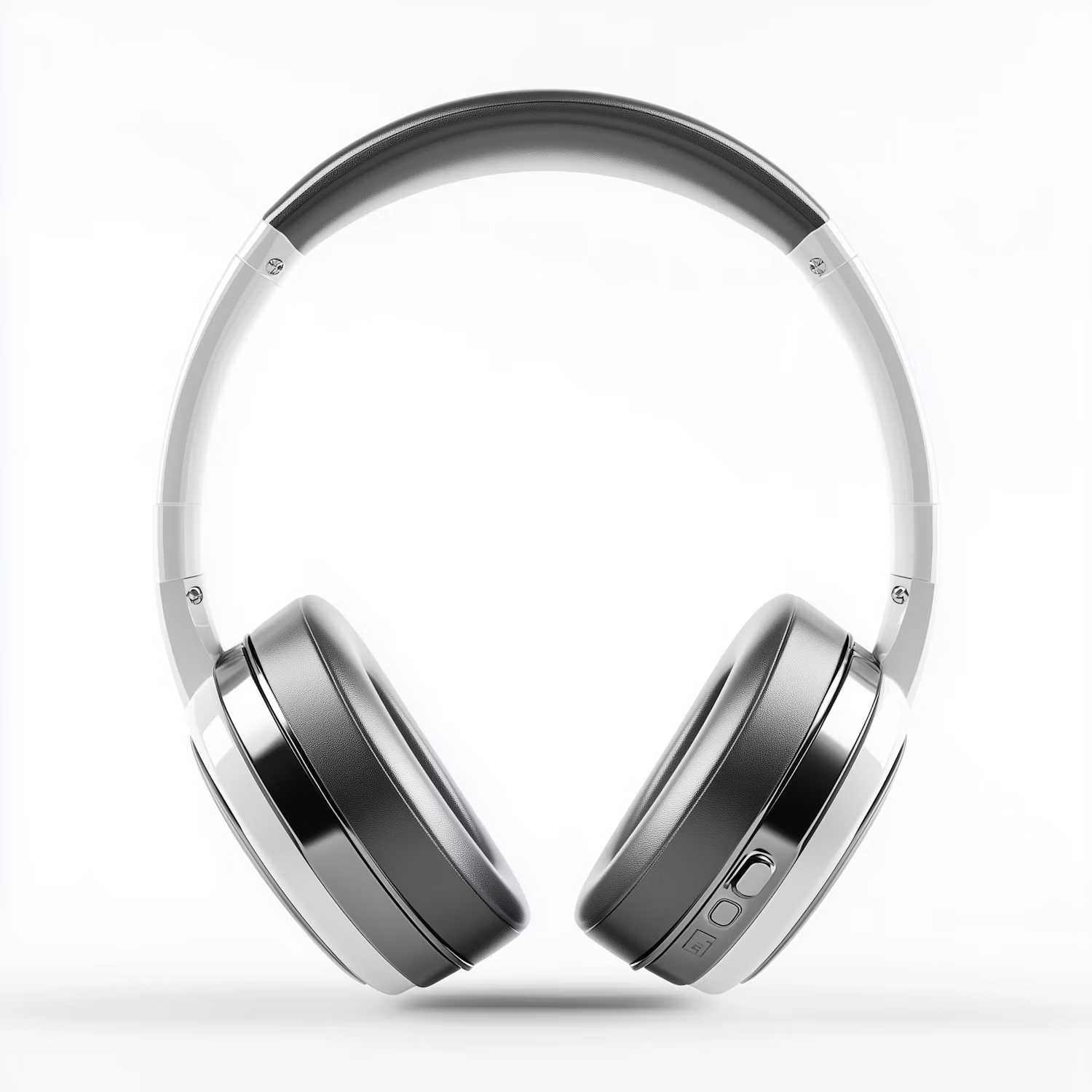

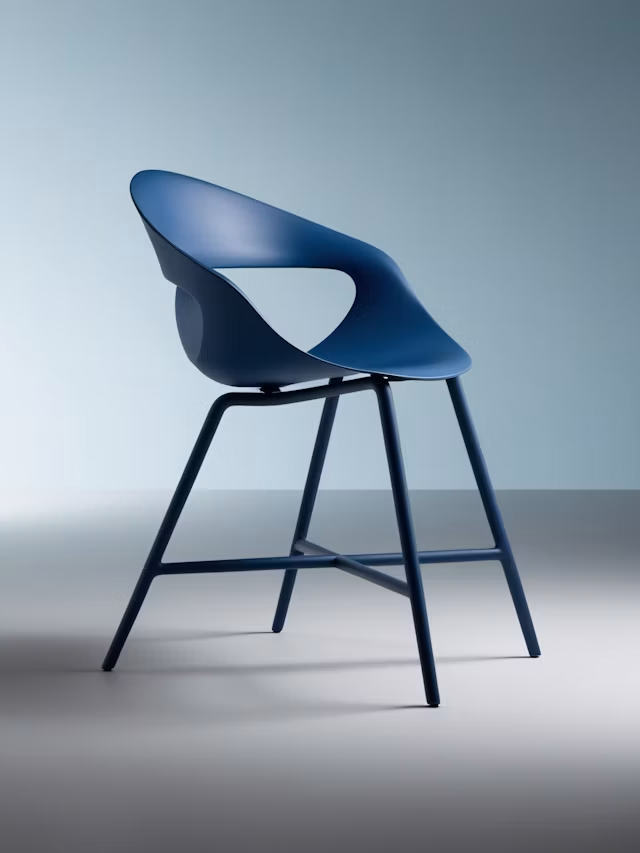
Change the color of Headphone Gray to blue while preserving its original texture, shape, lighting, and details.
Compare Models Side by Side
See the same smile on several image models and pick the best.
How it works
How to Add a Smile to a Photo
Create professional results in just a few simple steps.
Step 1
Upload a Photo
Use a clear photo where the face is well lit.
Choose a file or drag & drop it here.
JPG, PNG, or WEBP, up to 20 MB.
Step 2
Describe the Smile
Say how big the smile should be and who to change, then click Add Smile.
Step 3
Compare and Download
Pick the most natural version and save it.
Who is it for?
Who Uses the AI Smile Generator
Families
Save group photos where one person was not smiling.
Professionals
Turn a stiff headshot into a friendly one.
Wedding and Event Guests
Rescue the one great shot with a serious face.
Small Businesses
Make team and about-page photos look warmer.
Content Creators
Adjust expressions for thumbnails and posts.
Photographers
Fix expressions in client photos without a reshoot.
FAQ
Frequently Asked Questions
Answers on cost, natural smiles, group photos, teeth, and privacy for the AI Smile Generator.
Yes. You can add smiles on the free plan. Free has usage limits and a lower maximum resolution, and paid plans raise both.
Usually, with a sharp photo and a modest smile. Ask for a smile that "reaches the eyes" and compare a few models if the first result looks forced.
Yes. Describe the person, such as "the man on the left in the blue shirt", and ask to keep everyone else unchanged.
Yes. Ask for a subtle closed-mouth smile, a natural smile, or a big grin with teeth.
Yes. Add "slightly whiter teeth" to the instruction. Ask for a natural shade to avoid an unreal look.
Only with their permission. Do not change someone's expression to mislead others.
Yes. Your photos stay in your account and are not used to train models. You control who can see anything you share.
Ready to Explore?
Work Smarter With Multi-Model AI
Try new looks, edit photos, and create images with GPT Image, Nano Banana, FLUX, and Seedream in one secure workspace.