Shadow Remover
Remove shadows from a photo and even out the light.
Upload a photo with a hand shadow on a document, a harsh shadow on a face, or a dark patch on a product. Aymo AI lifts the shadow, evens out the lighting, and keeps the colors and detail underneath. Compare results from different image models and download the cleanest one.
Choose a file or drag & drop it here.
JPG, PNG, or WEBP, up to 20 MB.
Don't have a photo?
Try a sample image

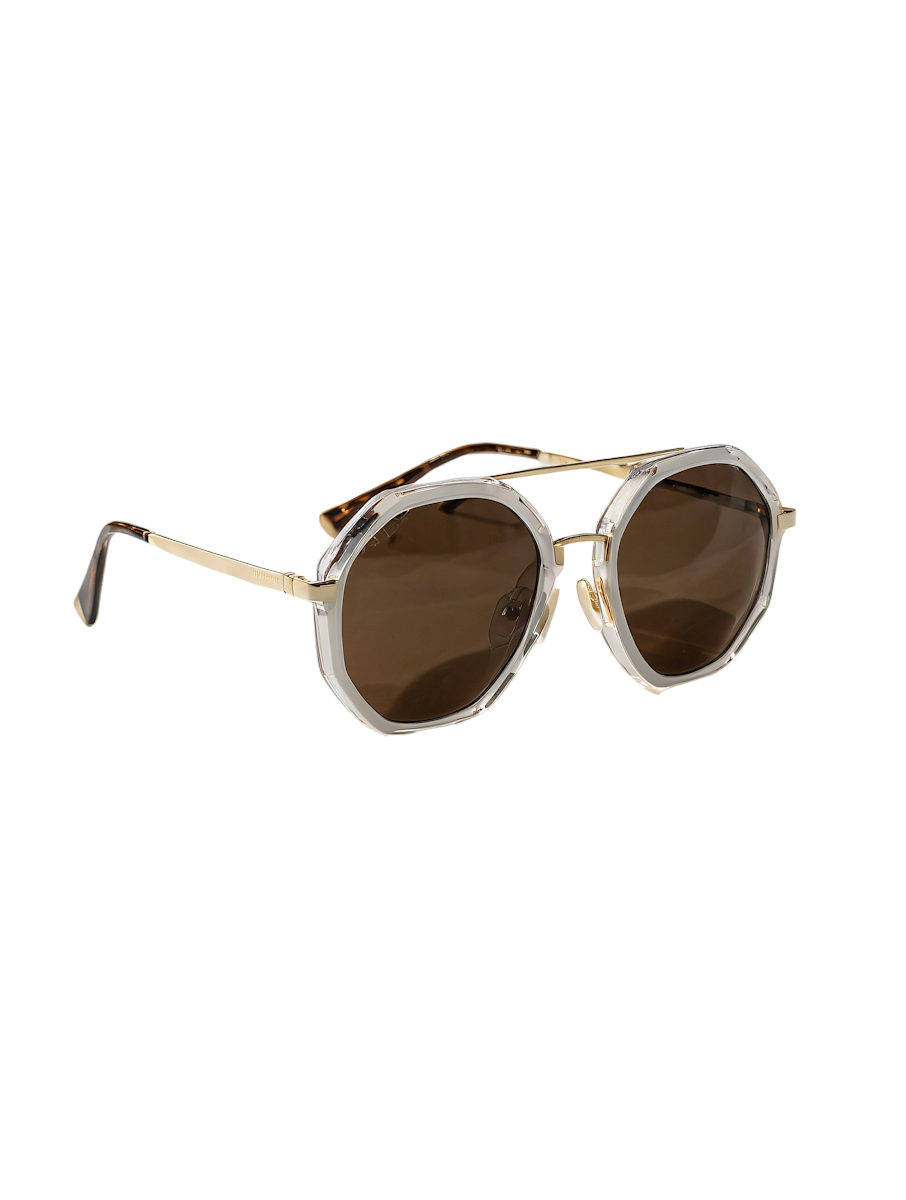
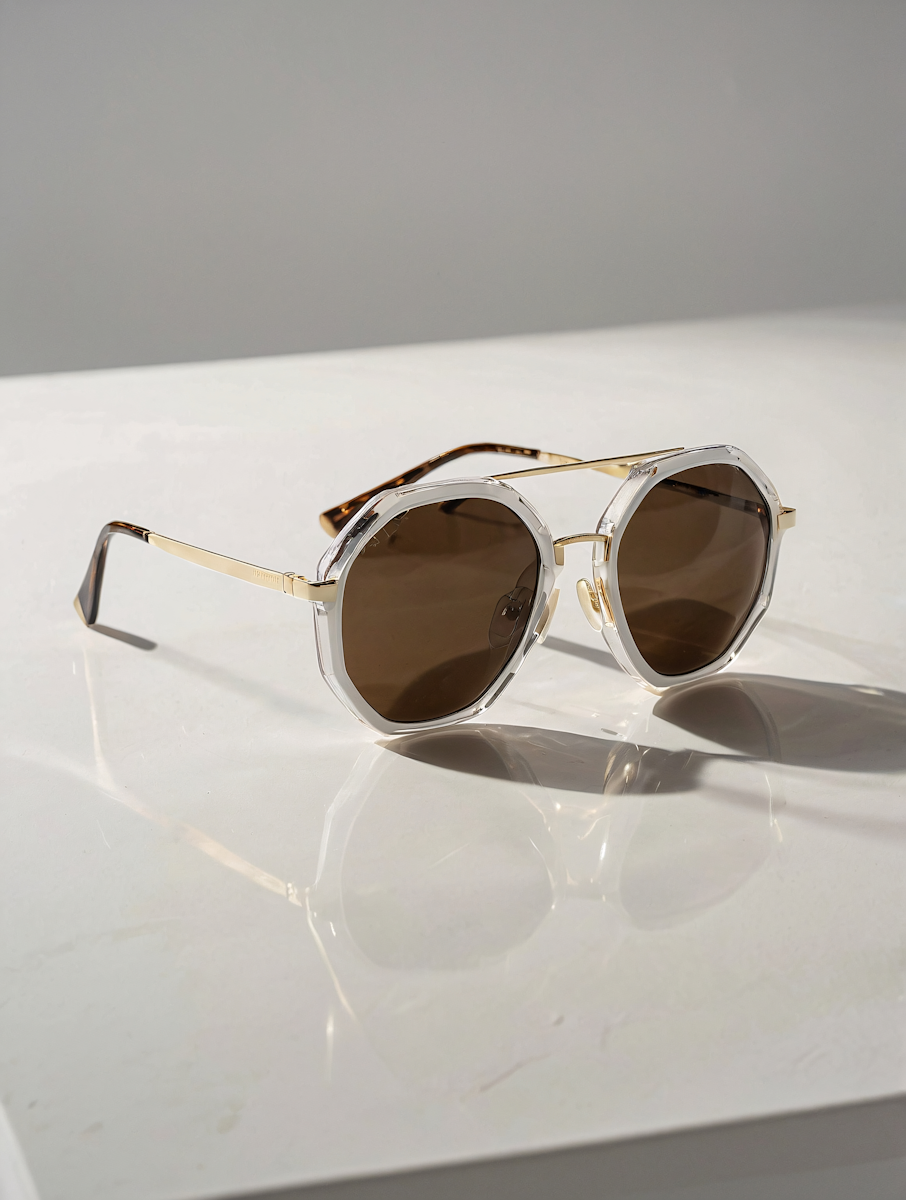
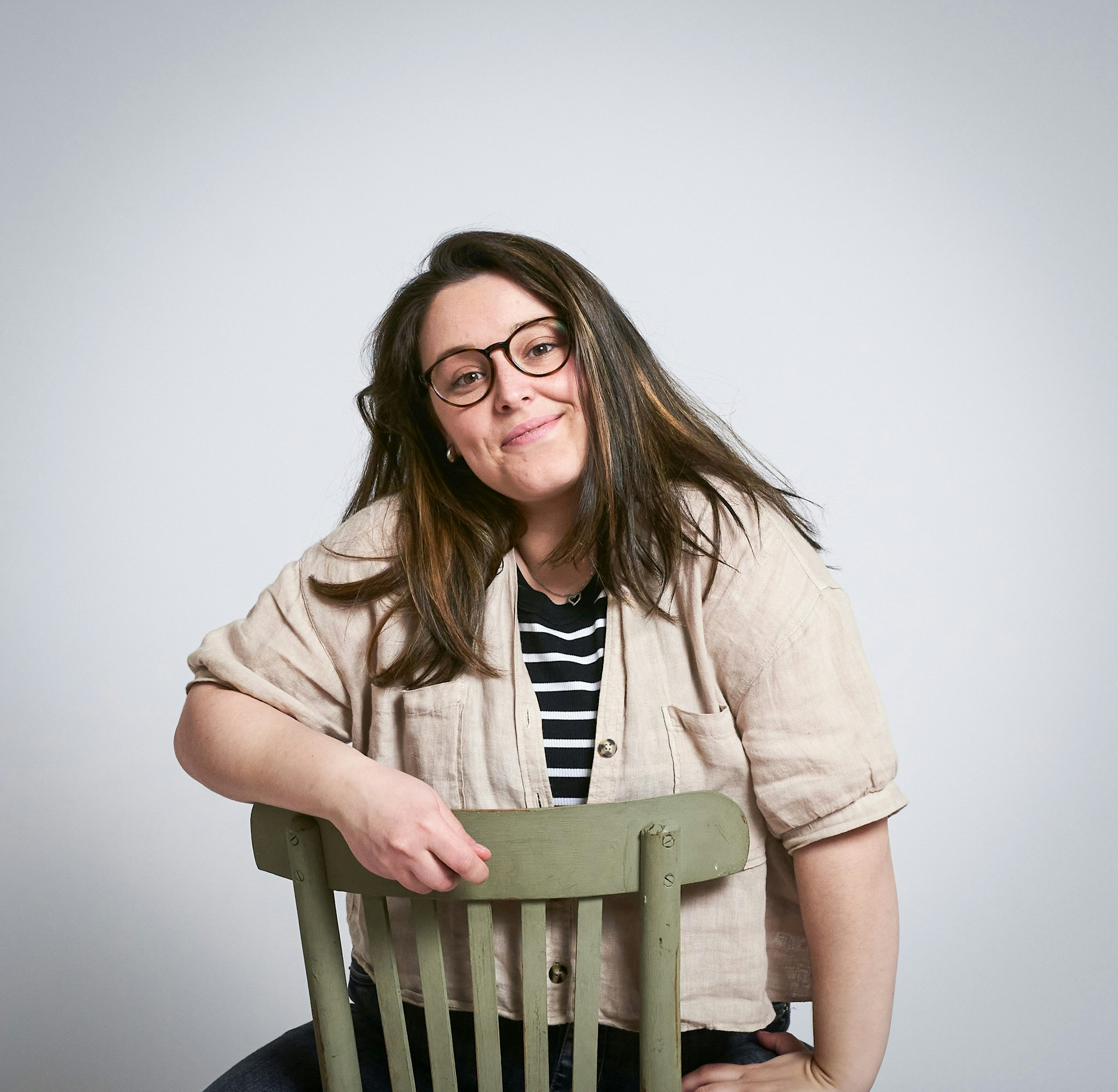
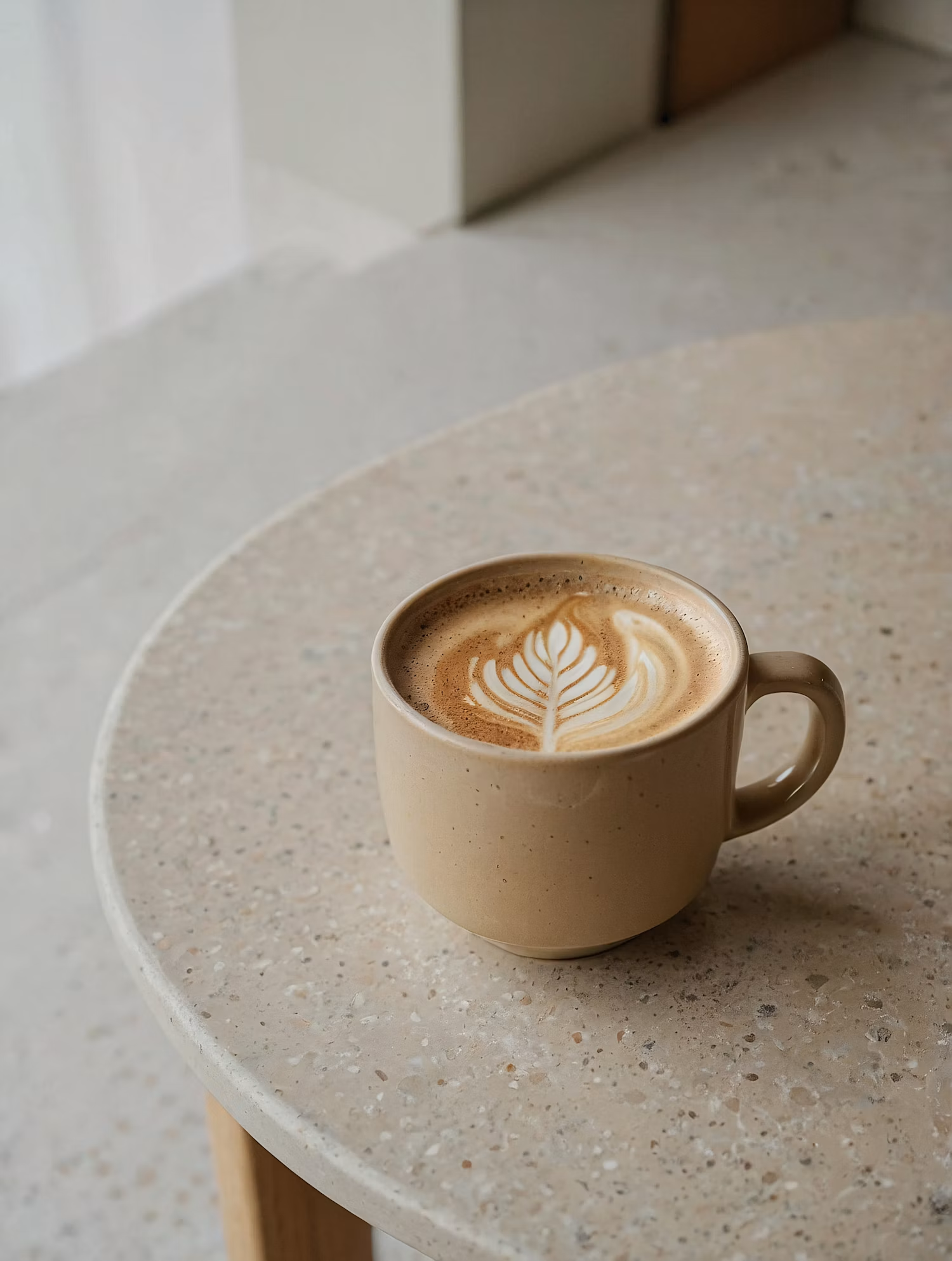
Multiple Image Models
Remove the shadow with several models and keep the most natural lighting.
Edge Detail
Documents and Receipts
Clear phone and hand shadows so scanned pages read evenly from edge to edge.
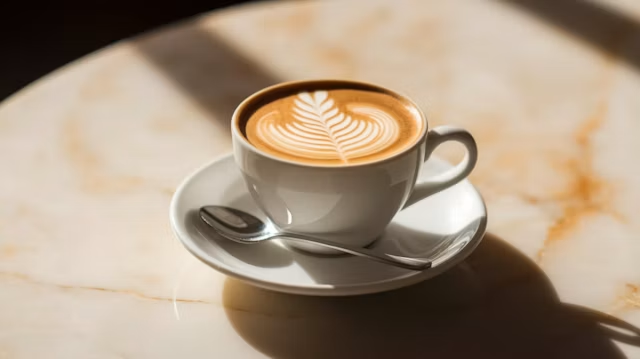
Faces and Portraits
Soften hard shadows from hats, sunlight, and side lighting.
How it works
How to Remove a Shadow with AI
Create professional results in just a few simple steps.
Step 1
Upload the Photo
Add the image with the shadow.
Choose a file or drag & drop it here.
JPG, PNG, or WEBP, up to 20 MB.
Step 2
Click Remove Shadows
Optionally, say which shadow to remove, then run it.
Step 3
Compare and Download
Check the light against the original and save the best version.
Who is it for?
Built for Cleaner Photos
Students
Fix shadows on photos of notes, handouts, and textbook pages.
Office Workers
Clean up receipts and documents photographed on a desk.
Online Sellers
Remove harsh shadows from product photos before listing.
Portrait Photographers
Soften unwanted shadows on faces from outdoor shoots.
Real Estate Agents
Brighten dark corners in room photos.
Social Media Creators
Fix outdoor shots taken in hard midday sun.
FAQ
Frequently Asked Questions
Answers on cost, photo types, results, models, and privacy for the Shadow Remover.
Yes. You can remove shadows on the free plan. The free plan has usage limits, and paid plans raise them.
Yes. It evens out phone and hand shadows on photographed pages, receipts, and forms so the text reads clearly.
Yes. It softens shadows from hats, hair, and harsh sunlight. Compare the result with the original to verify that the features remain the same.
Yes. Say which shadow to remove, and the model leaves the rest, which keeps the photo looking natural.
The model rebuilds detail it cannot see, so very dark areas may look softer. Try another model if one result looks flat.
Brightness changes the whole photo. The Shadow Remover lightens only the shaded area and matches it to the surrounding light.
Yes. Your photos stay in your account and are not used to train models. You control who can see anything you share.
Ready to Explore?
Work Smarter With Multi-Model AI
Remove shadows, edit photos, and generate images using GPT Image, Nano Banana, FLUX, and Seedream in one secure workspace.